Transfer to 40+ countries 
around the world

Online transactions are available 24 hours
for both Thai and foreign users.

Supported Countries
See All

Methods of Receiving Money

Select the destination country to view details

Supported destinations

Highlights

Good rates,
low fees

Fixed fee at
฿ 99 or ฿ 199

Real-time transfer
with status tracking

Receive money in as fast as 2 minutes*

Auto-save
receiver info

Up to 10 recent
receivers

Multiple
receiving methods

Bank account, E-Wallet
and cash pickup

Compare rates, get the best deal

Compare exchange rates and fees with other service providers for the best rates.

Instructions

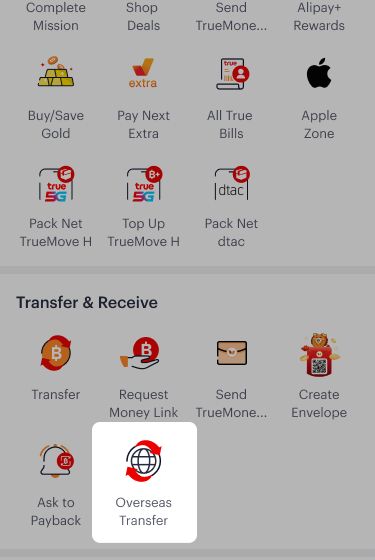
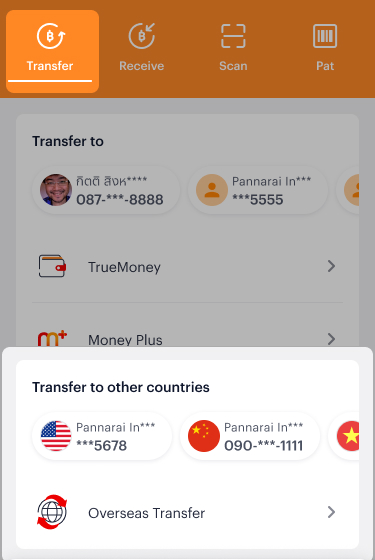
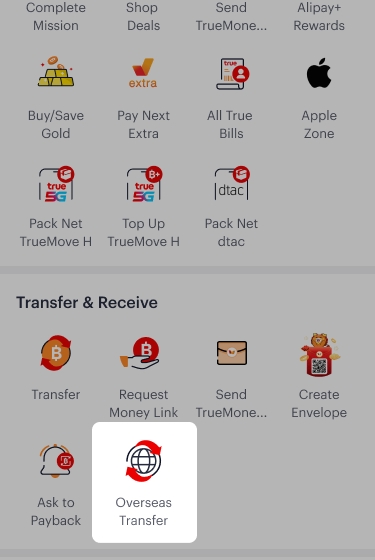
1. Select Overseas Transfer

1. Select Overseas Transfer

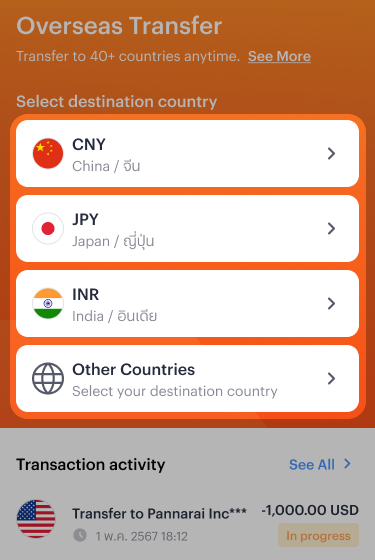
2. Select destination country

2. Select destination country

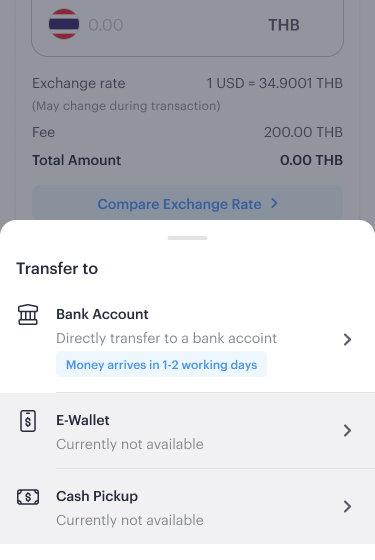
3. Select receiving method

3. Select receiving method

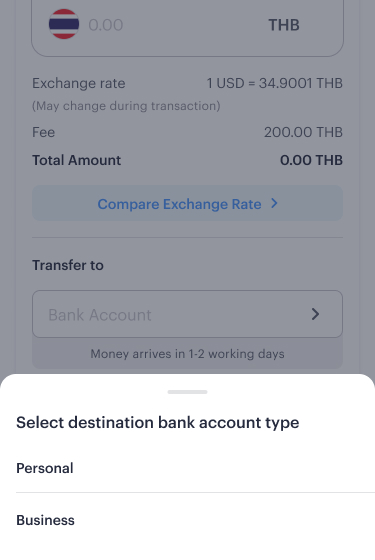
4. Select destination account type

4. Select destination account type

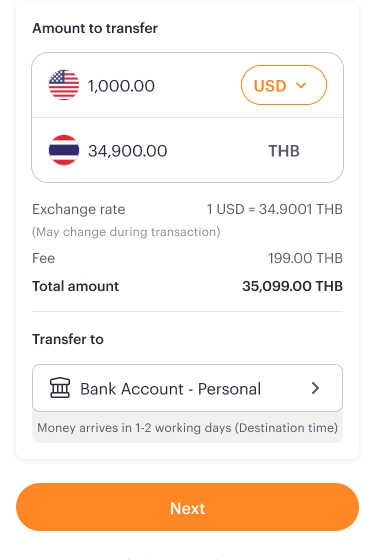
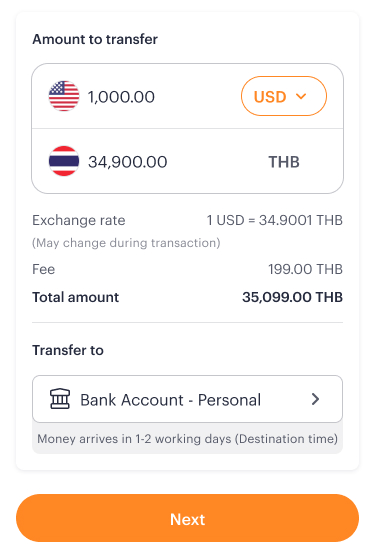
5. Enter the amount you wish to transfer. The system will display the real-time exchange rate and transaction fee.

5. Enter the amount you wish to transfer. The system will display the real-time exchange rate and transaction fee.

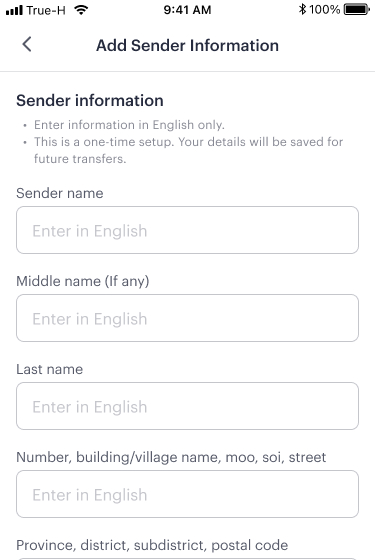
6. Enter your personal information as the sender. TrueMoney will verify your account details. If additional verification is required, TrueMoney will notify you via the TrueMoney app.

6. Enter your personal information as the sender. TrueMoney will verify your account details. If additional verification is required, TrueMoney will notify you via the TrueMoney app.

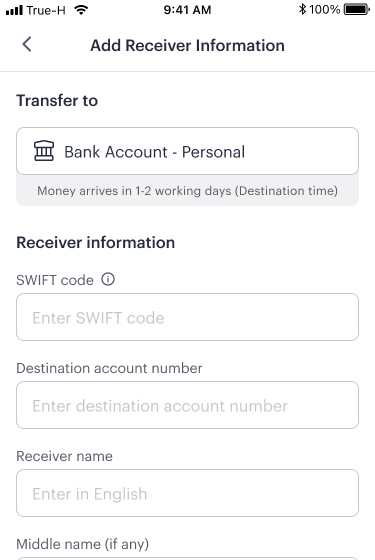
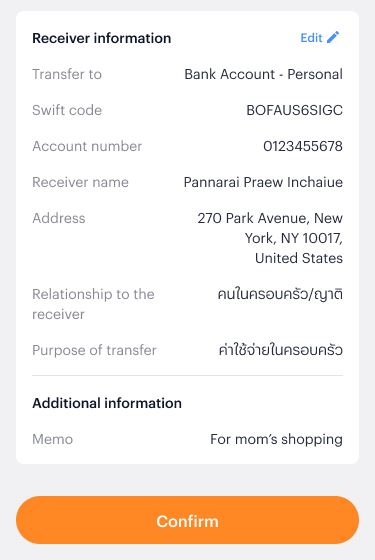
7. Provide the receiver’s details.

7. Provide the receiver’s details.

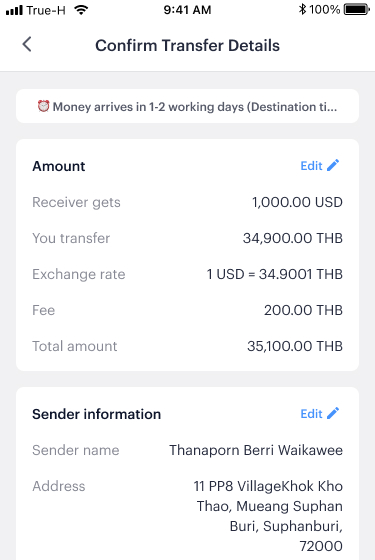
8. Confirm the transaction information

8. Confirm the transaction information

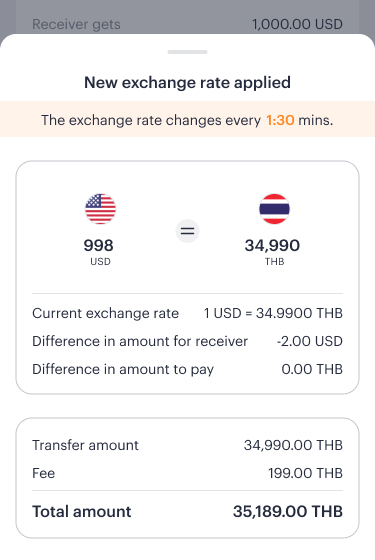
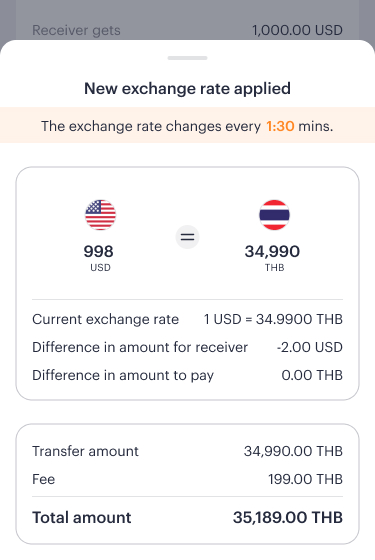
9. If the exchange rate changes during the transaction, the system will display an alert. You can either proceed or adjust the transfer amount.

9. If the exchange rate changes during the transaction, the system will display an alert. You can either proceed or adjust the transfer amount.

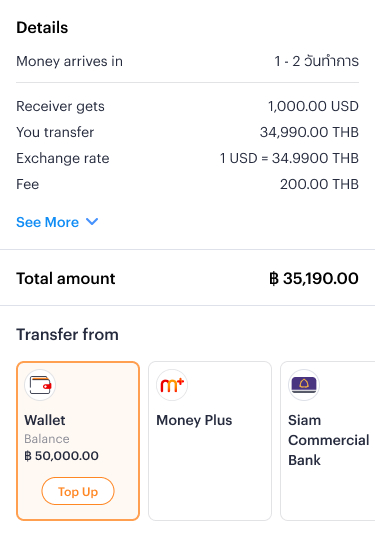
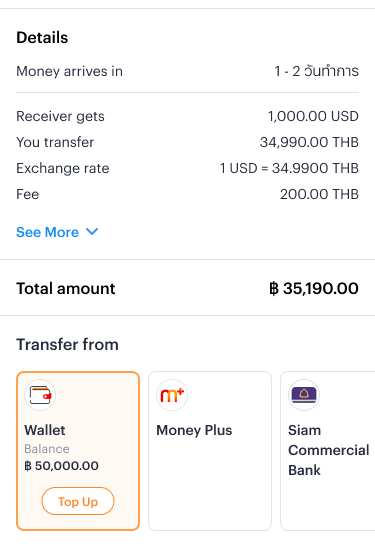
10. Select the source of funds and confirm the transaction.

10. Select the source of funds and confirm the transaction.

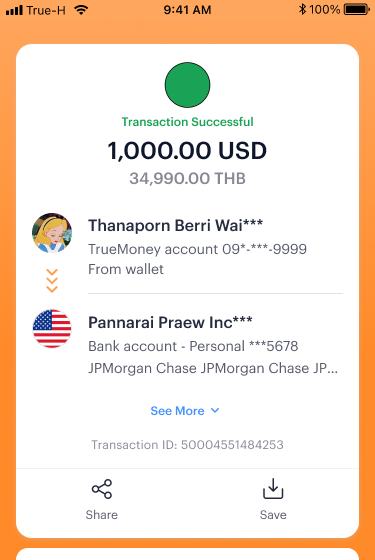
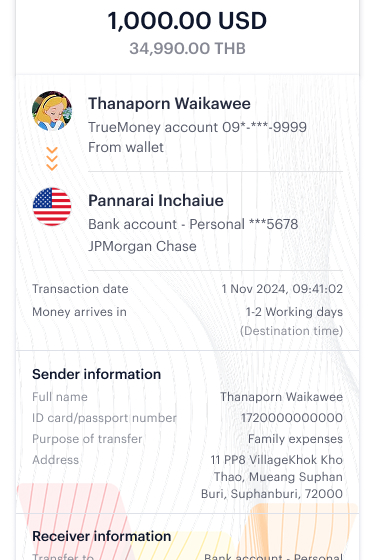
11. Transfer request is completed. TrueMoney will provide transaction evidence

11. Transfer request is completed. TrueMoney will provide transaction evidence

1. Go to “Transfer’ tab and select recent destination account.

1. Go to “Transfer’ tab and select recent destination account.

2. Enter the amount you wish to transfer. The system will display the real-time exchange rate and transaction fee.

2. Enter the amount you wish to transfer. The system will display the real-time exchange rate and transaction fee.

3. Confirm the transaction information

3. Confirm the transaction information

4. If the exchange rate changes during the transaction, the system will display an alert. You can either proceed or adjust the transfer amount.

4. If the exchange rate changes during the transaction, the system will display an alert. You can either proceed or adjust the transfer amount.

5. Select the source of funds and confirm the transaction.

5. Select the source of funds and confirm the transaction.

6. Transfer request is completed. TrueMoney will provide transaction evidence

6. Transfer request is completed. TrueMoney will provide transaction evidence

1. Select Overseas Transfer

1. Select Overseas Transfer

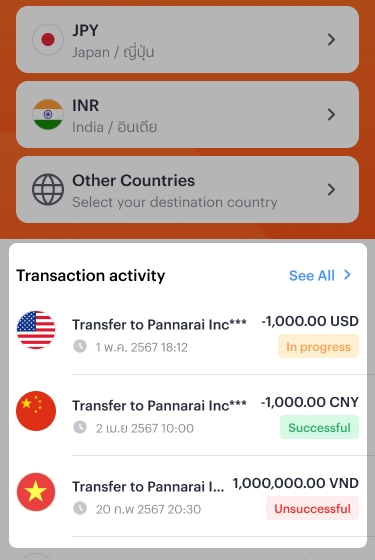
2. Go to Transaction Activity

2. Go to Transaction Activity

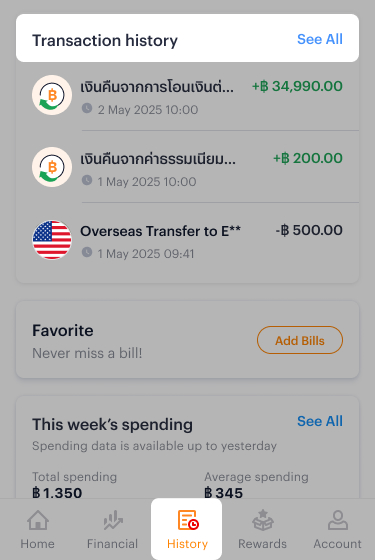
1. Select “History” menu and go to “Transaction history”

1. Select “History” menu and go to “Transaction history”

2. Select the transaction

2. Select the transaction

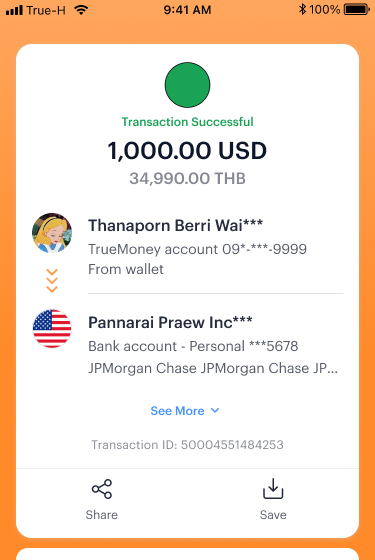
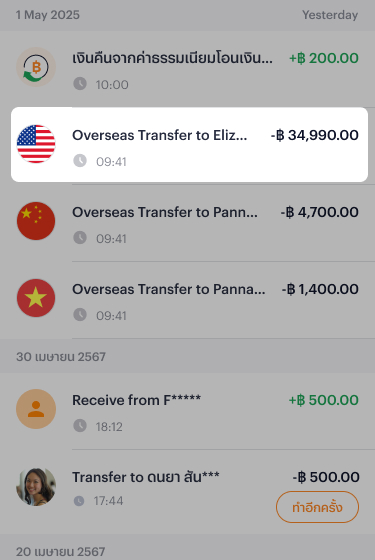
3. System will show transaction evidence

3. System will show transaction evidence

FAQ

You may need some of the bank/ financial institution identifier code below:

  • SWIFT Code
  • IBAN
  • BSB Code
  • IFSC Code
  • Branch Code
  • Routing Number / ACH Number

How to find bank/financial institution identifier code
TrueMoney recommends confirming the details directly with the receiver to ensure accurate transactions.

Read more about Bank/Financial institution identifier code

Your transfer limit depends on the destination country and your identity level in the TrueMoney app. To view your identity level, go to the menu “Account” and select “Identity Level”.

Check transfer limit based on identity level 

Money transfer license number MT125590006

Steps to check transfer status

1. Select Overseas Transfer

1. Select Overseas Transfer

2. Go to Transaction Activity

2. Go to Transaction Activity

Steps to transfer to a new destination account

1. Select Overseas Transfer

1. Select Overseas Transfer

2. Select destination country

2. Select destination country

3. Select receiving method

3. Select receiving method

4. Select destination account type

4. Select destination account type

5. Enter the amount you wish to transfer. The system will display the real-time exchange rate and transaction fee.

5. Enter the amount you wish to transfer. The system will display the real-time exchange rate and transaction fee.

6. Enter your personal information as the sender. TrueMoney will verify your account details. If additional verification is required, TrueMoney will notify you via the TrueMoney app.

6. Enter your personal information as the sender. TrueMoney will verify your account details. If additional verification is required, TrueMoney will notify you via the TrueMoney app.

7. Provide the receiver’s details.

7. Provide the receiver’s details.

8. Confirm the transaction information

8. Confirm the transaction information

9. If the exchange rate changes during the transaction, the system will display an alert. You can either proceed or adjust the transfer amount.

9. If the exchange rate changes during the transaction, the system will display an alert. You can either proceed or adjust the transfer amount.

10. Select the source of funds and confirm the transaction.

10. Select the source of funds and confirm the transaction.

11. Transfer request is completed. TrueMoney will provide transaction evidence

11. Transfer request is completed. TrueMoney will provide transaction evidence

Steps to transfer to a recent destination account

1. Go to “Transfer’ tab and select recent destination account.

1. Go to “Transfer’ tab and select recent destination account.

2. Enter the amount you wish to transfer. The system will display the real-time exchange rate and transaction fee.

2. Enter the amount you wish to transfer. The system will display the real-time exchange rate and transaction fee.

3. Confirm the transaction information

3. Confirm the transaction information

4. If the exchange rate changes during the transaction, the system will display an alert. You can either proceed or adjust the transfer amount.

4. If the exchange rate changes during the transaction, the system will display an alert. You can either proceed or adjust the transfer amount.

5. Select the source of funds and confirm the transaction.

5. Select the source of funds and confirm the transaction.

6. Transfer request is completed. TrueMoney will provide transaction evidence

6. Transfer request is completed. TrueMoney will provide transaction evidence

Steps to transfer to a recent destination account

1. Select “History” menu and go to “Transaction history”

1. Select “History” menu and go to “Transaction history”

2. Select the transaction

2. Select the transaction

3. System will show transaction evidence

3. System will show transaction evidence