
Shop at 7-Eleven stores nationwide

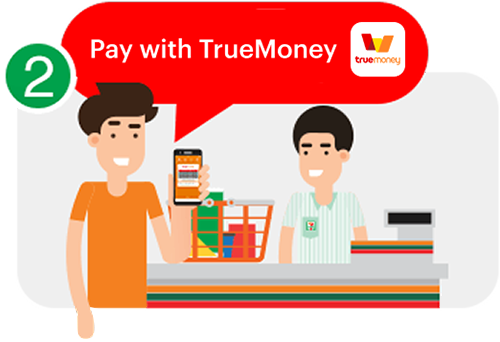
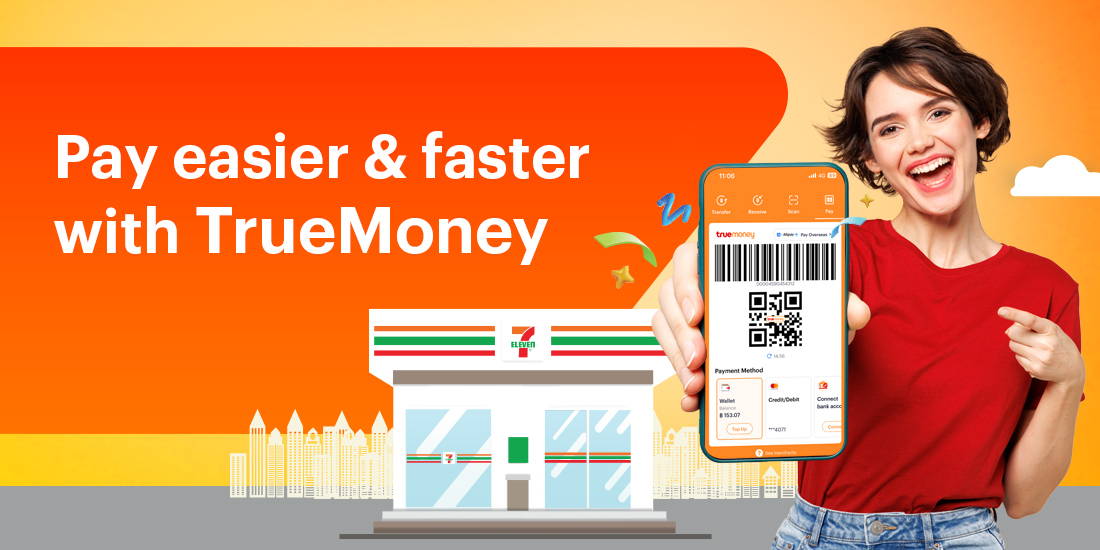
Pay with TrueMoney

Open TrueMoney app → Tap “Pay” → Show your barcode to the cashier and say “Pay with TrueMoney” or say in Thai “Jaay TrueMoney

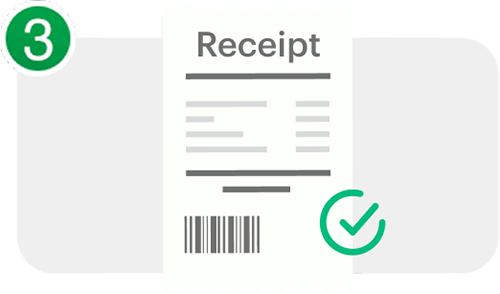
Get payment confirmation

After completing your purchase, you’ll receive a receipt from 7-Eleven and you can also view your transaction history anytime in the TrueMoney app.
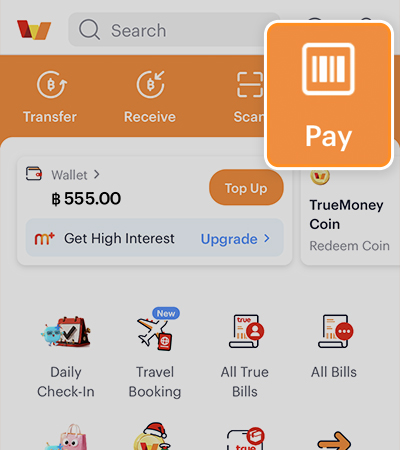
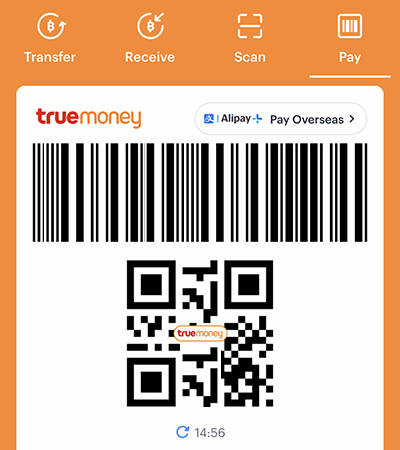
How to use the barcode for payment

1. Select the icon “Pay

2. Show your barcode to the cashier to scan for payment

Top up your TrueMoney app easily!

√ Top-up amount per transaction: THB 10 – 3,000
√ Daily top-up limit: THB 10,000 per account

Note: Each 7-Eleven store has a top-up limit of THB 50,000 per day

FAQ

You can easily pay at 7-Eleven using a barcode in just 3 steps:

  1. Tap the “Pay
  2. Show your barcode to the cashier.
  3. Let the cashier scan it, you can view your transaction history anytime in the TrueMoney app.
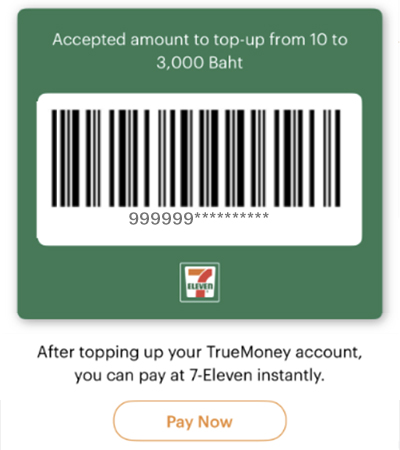
You must have a balance in your TrueMoney account before using the barcode to pay at 7-Eleven.
You can top up at any time via various channels such as 7-Eleven, True Shop, Lotus’s or other participating outlets.

You can use the barcode to pay for almost all products and services at 7-Eleven, except for a few restricted items.
Examples include:

  • Utility bill payments and other counter services (e.g. water, electricity, mobile bills).
  • Mobile top-ups, TrueMoney top-ups.
  • Booking premium items
  • Other online services such as mobile number portability and subscription Truemove services.
Please close and reopen the TrueMoney application, then try again.

You can top up your TrueMoney account at 7-Eleven.
Just select the “Top up” menu and choose “Top up TrueMoney at 7-Eleven”.
Tell the cashier your desired amount (available top-up amounts are THB 10–3,000) and pay in cash. Once the top-up is complete, you can immediately make your purchase using your TrueMoney balance.

If you experience any payment issues at the store, please contact TrueMoney Call Center 1240 for assistance.